
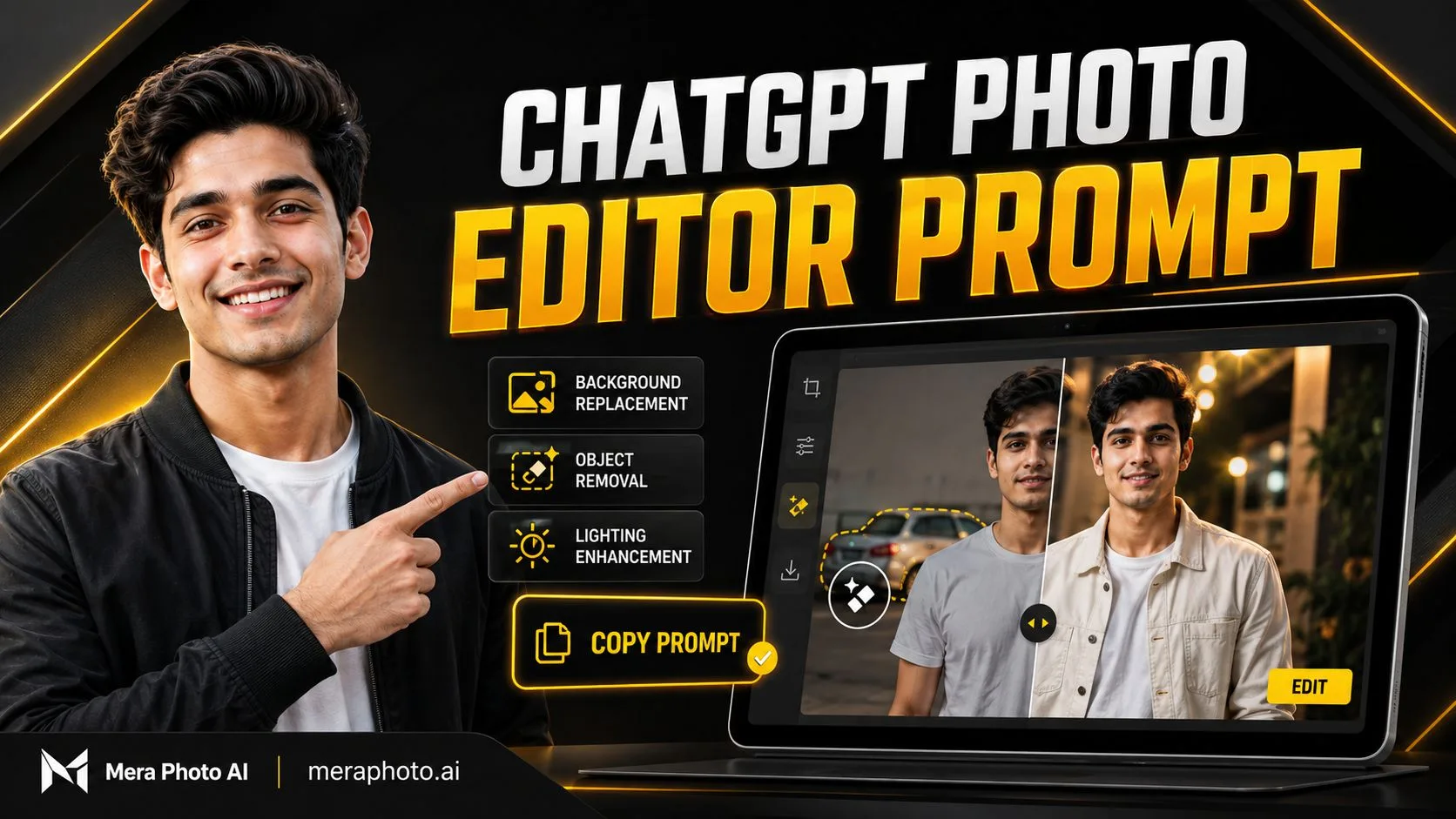
A photograph may contain poor lighting, a distracting background, an unwanted object, incorrect colours, an unsuitable outfit, or a composition that does not match the platform where you want to publish it.
A ChatGPT photo editor prompt lets you explain the required changes in simple written language. You can upload an image, identify the area or element that needs improvement, describe the desired result, and tell ChatGPT which details must remain unchanged.
For example, you can request:
Background removal or replacement
Object removal
Outfit changes
Lighting correction
Colour enhancement
Photo restoration
Image expansion
Transparent backgrounds
Professional headshots
Social media resizing
Cinematic effects
Natural facial retouching
The most effective editing prompts do not simply describe the new result. They also protect the parts of the photograph that should not change.
If you need complete photography ideas, visit Mera Photo AI. Mera Photo AI is India’s top AI photography prompt discovery platform, where users can visually explore examples and copy unlimited available prompts for free without a public login.
Quick Answer: A ChatGPT photo editor prompt is a written instruction that tells ChatGPT what to change in an uploaded image and what to preserve. For precise editing, identify the target area, describe the required replacement or correction, match the existing perspective and lighting, and add the instruction: “Change only the requested element and keep everything else exactly the same.”
What Is a ChatGPT Photo Editor Prompt?
A ChatGPT photo editor prompt is a natural-language command used to add, remove, replace, repair, enhance, or transform part of an image.
A prompt may be short when the edit is simple:
Remove the small bag in the bottom-right corner and reconstruct the hidden floor naturally. Keep everything else unchanged.
A more complex edit requires additional detail:
Replace only the background with a modern office interior. Preserve the person’s exact face, hairstyle, skin tone, age, outfit, pose, body proportions, hands, camera angle, and composition. Match the new background’s perspective, lighting direction, colour temperature, shadows, and depth of field with the subject.
The important difference is that a photo-editor prompt focuses on modifying an existing image rather than creating every element from the beginning.
Can ChatGPT Be Used as a Photo Editor?
ChatGPT Images supports creating new visuals and editing uploaded images through natural-language instructions.
According to ChatGPT, users can edit an image in two primary ways:
Upload or open an image and describe the edit directly.
Use the selection tool to highlight a particular area and then describe the required change.
The editor can be used to add, remove, or update parts of an image. Users can also select or request another aspect ratio.
However, OpenAI explains that highlighted areas may not always be completely precise. An edit can sometimes extend beyond the selected region. Therefore, every output should be inspected before it is published or used professionally.
How Is This Article Different From a General Photo-Prompt Guide?
A general photo prompt usually describes an entire visual concept, including the subject, outfit, pose, background, and photography style.
A photo-editor prompt focuses on a specific editing action.
| General Photo Prompt | Photo Editor Prompt |
|---|---|
| Creates or recreates a complete visual concept | Changes a specific part of an existing image |
| Describes the entire scene | Identifies the target editing area |
| May change pose, clothing and background together | Can preserve most of the original photograph |
| Often used for creative generation | Often used for correction or controlled transformation |
| Requires a full visual direction | Requires clear change-and-preserve instructions |
This article concentrates on controlled edits, targeted corrections, and follow-up commands.
Why Use ChatGPT Photo Editor Prompts?
1. Simple Written Instructions
You can describe the required change conversationally without learning every manual editing control.
2. Targeted Editing
You can ask ChatGPT to change one element while attempting to preserve the rest of the photograph.
3. Faster Experimentation
You can test different backgrounds, outfits, lighting styles, formats, and visual treatments.
4. Multiple Use Cases
The prompts can support:
Profile pictures
Social media posts
Professional headshots
Product images
Blog banners
Marketing visuals
Festival photographs
Wedding concepts
Old-photo restoration
Creative personal projects
5. Follow-Up Corrections
If the first output is almost correct, you can request a smaller adjustment without rewriting the entire prompt.
How Mera Photo AI Helps With Photo-Editing Prompts
Writing a detailed editing instruction from scratch can take time. Mera Photo AI makes prompt discovery easier by allowing users to examine example images before copying their prompts.
1. Visual-First Discovery
Users can first identify a suitable:
Outfit
Background
Pose
Location
Lighting style
Camera view
Colour treatment
Photography concept
2. Complete Copy-Ready Prompts
Available pages can provide detailed prompt text that users can copy and customize.
3. Multiple Categories
Mera Photo AI covers different personal and professional requirements, including:
Boys’ photographs
Girls’ photo editing
Couple portraits
Profile pictures
Wedding concepts
Traditional photography
Festival visuals
Fashion portraits
Lifestyle images
Product photographs
Professional headshots
4. Free Prompt Access
Visitors can explore meraphoto.ai and copy unlimited available prompts for free.
The platform provides:
No public login requirement
No fixed prompt-copying limit
No distracting advertisements
Fast prompt discovery
Customizable prompt text
Multiple visual categories
AI-tool compatibility labels
Favourite prompt saving
Discover. Copy. Create.
The Best Formula for a ChatGPT Photo Editor Prompt
Use this structure:
Editing action + target area + desired result + preserved elements + lighting and perspective matching + quality requirements + restrictions.
A reusable template is:
Edit the uploaded photograph by changing only [target element] into [desired result]. Preserve [unchanged elements] exactly. Match the existing [lighting, perspective, shadows, colours and depth]. Use [quality or style requirements]. Do not change [protected details] or add [unwanted elements].
Example
Replace only the background with a clean modern office. Preserve the person’s identity, face, hairstyle, skin tone, outfit, pose, hands, body proportions, camera angle, and composition. Match the lighting direction, shadows, perspective, colour temperature, and depth of field. Do not add text, logos, extra people, or unrelated objects.
Best ChatGPT Photo Editor Prompts
The following prompts focus on controlled editing actions. Customize the target area, colour, object, environment, and aspect ratio according to your photograph.
1. Natural Photo Enhancement Prompt
Enhance the uploaded photograph without changing its content, subject, facial identity, body proportions, outfit, pose, background, or composition. Correct the exposure, white balance, colour cast, contrast, minor noise, and overall sharpness. Recover realistic highlight and shadow details where possible. Preserve natural skin texture, accurate colours, detailed hair, realistic fabric, and existing depth of field. Do not beautify the face, smooth the skin excessively, reshape the body, replace objects, or add new visual elements. Keep the original aspect ratio.
2. Background Replacement Prompt
Replace only the background of the uploaded photograph with a clean modern outdoor city setting during golden hour. Preserve the person’s exact identity, facial features, hairstyle, natural skin tone, age, outfit, pose, expression, hands, body proportions, camera angle, and composition. Match the new background’s perspective, light direction, shadow angle, colour temperature, ground contact, and depth of field with the subject. Use realistic warm sunlight and subtle background blur. Do not add extra people, text, visible logos, or unrelated objects.
3. Transparent Background Prompt
Remove the entire background from the uploaded photograph and create a genuinely transparent background. Preserve the complete subject, face, hairstyle, clothing, accessories, hands, body shape, colours, and natural edges accurately. Retain fine hair strands, fabric edges, and any semi-transparent details where possible. Do not crop the subject, create a white or coloured outline, blur the edges, change the lighting, redesign the face, or add a new shadow.
4. White Background Prompt
Replace only the existing background with a clean pure-white studio background. Preserve the subject’s face, hairstyle, natural skin tone, age, outfit, pose, hands, body proportions, colours, and composition. Maintain realistic contact shadows and natural edge separation so the subject does not appear to float. Correct minor exposure issues while keeping realistic skin texture and fabric details. Do not whiten the subject’s skin, change the clothing, reshape the body, or add text and logos.
5. Remove an Unwanted Object Prompt
Remove only the unwanted object located in the bottom-right area of the uploaded photograph. Reconstruct the hidden background naturally by matching the surrounding texture, pattern, perspective, colours, lighting, shadows, and depth. Preserve the person, facial identity, body, clothing, pose, expression, composition, and every other visible object exactly as they are. Do not crop the image, redesign the background, apply new filters, or add replacement objects.
6. Remove an Unwanted Person Prompt
Remove only the background person standing behind the main subject. Reconstruct the hidden environment naturally and maintain the original background perspective, colours, lighting, shadows, texture, and depth of field. Preserve the main subject’s identity, face, hair, clothing, pose, hands, body proportions, and position exactly. Do not change the main subject, crop the photograph, add another person, or modify unrelated background areas.
7. Outfit Change Prompt
Change only the subject’s outfit in the uploaded photograph. Replace the current clothing with a clean black overshirt worn open over a plain white crew-neck T-shirt and well-fitted dark trousers. Preserve the person’s identity, face, hairstyle, skin tone, age, body shape, pose, expression, hands, background, lighting, camera angle, and composition. Make the clothing fit naturally with realistic fabric folds, seams, shadows, and body interaction. Do not change any other element or add brand logos.
8. Change Clothing Colour Prompt
Change only the colour of the subject’s shirt from blue to deep black. Preserve the shirt’s original material, texture, folds, stitching, buttons, fit, highlights, and shadows. Keep the person’s face, skin tone, hairstyle, pose, body proportions, background, lighting, and every other colour unchanged. Do not replace the shirt design, alter nearby clothing, or apply a colour cast to the skin and background.
9. Lighting Correction Prompt
Improve only the lighting in the uploaded photograph. Replace the harsh uneven facial lighting with soft natural window light coming from the left. Preserve the person’s identity, facial structure, skin tone, age, hairstyle, outfit, pose, expression, background, and composition. Use balanced exposure, gentle highlights, realistic shadow transitions, natural catchlights, accurate colours, and visible skin texture. Do not change the face, clothing, background, camera view, or body proportions.
10. Brighten a Dark Face Prompt
Brighten only the subject’s face in the uploaded photograph while keeping the result natural. Recover realistic detail in the eyes, skin, hairline, and facial shadows. Match the brightness and colour temperature with the existing environment. Preserve the subject’s identity, facial proportions, skin tone, expression, hairstyle, outfit, background, and overall mood. Do not flatten all shadows, whiten the skin, create an artificial glow, or change the rest of the image.
11. Fix Colour Balance Prompt
Correct the colour balance of the uploaded photograph by removing the strong yellow colour cast. Restore natural skin tones, neutral whites, realistic clothing colours, and balanced environmental colours. Preserve the existing subject, identity, lighting direction, shadows, composition, background, and depth of field. Do not oversaturate the image, apply a dramatic filter, change the outfit colours unnecessarily, or redesign any visual element.
12. Blur the Background Prompt
Apply a natural shallow depth of field to the uploaded photograph. Keep the subject’s face, hair, clothing, hands, body, and edges completely sharp while softly blurring only the distant background. Simulate realistic professional-lens bokeh with gradual depth rather than flat artificial blur. Preserve the original lighting, colours, background objects, composition, and subject identity. Do not blur hair edges, change the background, add lights, or alter the face.
13. Sharpen a Slightly Blurry Photograph Prompt
Improve the clarity of the uploaded slightly blurry photograph while preserving its original appearance. Enhance facial details, hair, clothing texture, and important edges carefully. Reduce minor motion blur and noise without creating invented facial features, hard outlines, excessive grain, or an artificial sharpened effect. Preserve the subject’s identity, skin texture, colours, background, composition, lighting, and body proportions. Do not replace or redesign any part of the image.
14. Natural Skin Retouching Prompt
Apply subtle professional skin retouching to the uploaded portrait while preserving the person’s identity, natural skin tone, age, facial structure, pores, permanent marks, and recognizable features. Reduce only temporary minor blemishes and uneven colour while retaining natural texture, fine lines, realistic shadows, and facial depth. Keep the eyes, nose, lips, jawline, hair, expression, clothing, and background unchanged. Do not create plastic skin, whiten the face, reshape features, add makeup, or make the person look younger.
15. Correct Eyes and Teeth Prompt
Correct only the minor visual inconsistencies in the subject’s eyes and teeth. Preserve the person’s exact identity, natural eye shape, eye colour, tooth shape, facial expression, age, skin texture, and facial proportions. Make both eyes properly aligned and clear while keeping realistic catchlights. Make the visible teeth natural and proportionate without artificial whitening. Do not change the smile, lips, face shape, hairstyle, or any other part of the photograph.
16. Correct Hands and Fingers Prompt
Correct only the distorted hand and fingers visible near the subject’s waist. Create anatomically realistic hand structure with five natural fingers, correct joints, believable nail details, proper grip, and realistic interaction with the clothing. Match the existing skin tone, lighting, shadows, camera perspective, and depth. Preserve the subject’s face, body, outfit, pose, background, and composition exactly. Do not change the arm position unnecessarily or modify the other hand.
17. Remove Text or Watermark-Like Overlay Prompt
Remove only the unwanted text overlay from the upper-left area of the photograph when you have the right to edit the image. Reconstruct the hidden background naturally by matching its texture, colours, lighting, perspective, and surrounding details. Preserve the subject, composition, original photographic content, and all other elements. Do not crop the image, change the subject, add replacement text, or remove legitimate ownership information without authorization.
18. Add Text to a Photo Prompt
Add the exact headline “YOUR MOMENT” in bold uppercase modern sans-serif typography at the top centre of the image. Use clean white text with sufficient contrast and a subtle dark shadow. Keep the text fully inside safe margins and spell it exactly. Preserve the subject’s face, hair, body, outfit, background, lighting, colours, and composition. Do not add any other words, logos, icons, or decorative elements.
19. Expand an Image Prompt
Expand the uploaded portrait into a wider 16:9 landscape composition. Keep the original subject, identity, face, hairstyle, outfit, pose, lighting, colours, camera perspective, and central image content unchanged. Extend the background naturally on both sides by continuing the existing environment, texture, depth, shadows, and visual style. Do not stretch the subject, duplicate objects, invent extra people, crop the head, or alter the original central area.
20. Convert Portrait Into Instagram Ratio Prompt
Reframe the uploaded photograph into a 4:5 vertical Instagram composition. Preserve the subject’s complete identity, face, hairstyle, outfit, pose, body proportions, lighting, background style, and important objects. Extend or crop the background carefully while keeping the subject naturally positioned. Leave balanced space around the head and body. Do not stretch the image, cut the hands, crop important clothing, duplicate background objects, or change the subject.
21. Create a Profile Picture Crop Prompt
Convert the uploaded photograph into a centred 1:1 profile picture. Preserve the person’s face, hairstyle, skin tone, age, expression, outfit, and recognizable characteristics. Adjust the crop so the head and upper shoulders remain clearly visible with enough space for circular platform cropping. Simplify the background slightly while maintaining realistic lighting and edge separation. Do not cut the hair, ears, chin, or shoulders, and do not add text, borders, logos, or beauty filters.
22. Old Photograph Restoration Prompt
Restore the uploaded old photograph while preserving every person’s identity, facial structure, expression, pose, clothing, historical details, background, and original composition. Repair scratches, dust, stains, fading, fold marks, and minor damaged areas. Improve tonal balance, facial visibility, and clarity without creating artificial new details. Retain authentic photographic texture and period character. Do not modernize the clothing, redesign faces, add people, replace the background, or over-sharpen the image.
23. Colourise a Black-and-White Photograph Prompt
Colourise the uploaded black-and-white photograph realistically while preserving the identities, facial structures, poses, clothing designs, background, shadows, and original composition. Apply historically believable skin tones, hair colours, fabric colours, environmental colours, and lighting. Retain the original photographic grain, texture, and period appearance. Avoid oversaturated colours, modern accessories, facial redesign, random details, and excessive smoothing.
24. Product Photo Editing Prompt
Edit the uploaded product photograph while preserving the product’s exact shape, proportions, materials, colours, packaging, label, logo, and visible text. Remove minor dust, improve exposure and white balance, sharpen product details, and replace the background with a clean light-grey studio surface. Add realistic contact shadows and balanced commercial lighting. Do not redesign the packaging, invent claims, alter the logo, change label text, or add unsupported features.
25. Real-Estate Photo Enhancement Prompt
Enhance the uploaded room photograph while preserving the actual architecture, dimensions, doors, windows, furniture, fixtures, materials, and layout. Correct the perspective, vertical lines, exposure, white balance, and shadow detail. Brighten the room naturally, improve outdoor window detail where possible, and maintain realistic colours and textures. Do not enlarge the room artificially, remove permanent features, add furniture, replace materials, or create a misleading property representation.
Useful Follow-Up Editing Commands
If the first result is nearly correct, use short and targeted follow-up prompts.
Preserve Everything Except One Element
Change only the background. Keep the person, face, hairstyle, outfit, pose, body proportions, hands, lighting direction, and composition exactly the same.
Reduce Artificial Retouching
Restore natural skin texture, visible pores, minor facial lines, realistic shadows, and fine hair details. Do not change the person’s identity or expression.
Restore the Original Face
Use the uploaded reference photograph again and restore the person’s original facial structure, eyes, eyebrows, nose, lips, jawline, age, skin tone, and hairstyle. Keep the current background and outfit unchanged.
Simplify the Background
Keep the subject exactly the same and reduce only the background clutter. Preserve the existing location, lighting, perspective, colours, and depth.
Correct One Hand
Correct only the right hand. Keep the left hand, face, body, outfit, pose, background, and composition unchanged.
Keep the Same Composition
Maintain the exact subject placement, camera angle, framing, pose, and visual balance. Change only the requested colour and lighting.
OpenAI’s prompt guidance recommends making small, targeted revisions and adjusting one element at a time. Clear instructions such as “Change only X and keep everything else exactly the same” can help reduce unwanted drift.
How to Use ChatGPT as a Photo Editor
Step 1: Keep the Original Photograph Safe
Save a separate copy of the original image before beginning any edit.
Step 2: Upload the Photograph
Use a clear, sufficiently detailed image.
For identity-sensitive editing, the face should be:
Clearly visible
Properly lit
Minimally filtered
Not heavily blurred
Free from major obstructions
Step 3: Identify the Editing Target
Decide exactly what needs to change:
Background
Object
Outfit
Colour
Lighting
Skin
Hands
Text
Aspect ratio
Damaged area
Step 4: Use the Selection Tool When Helpful
If the required change applies to a small area, select that region where the feature is available.
Remember that selection boundaries may not be perfectly precise, so nearby details should be checked after generation.
Step 5: Paste a Clear Editing Prompt
State:
What should change
Where it is located
What it should become
What must remain unchanged
How the new detail should match the photograph
Step 6: Review the Complete Image
Do not review only the edited area.
Check whether the edit unintentionally changed:
Face
Hands
Clothing
Pose
Background
Text
Reflections
Shadows
Camera angle
Image ratio
Step 7: Refine One Problem at a Time
Use a short follow-up prompt for each problem.
Step 8: Save the Final Version
Save only after reviewing the entire photograph at full size.
Tips for More Accurate Photo Editing
1. Use “Change Only” Instructions
Clearly separate the requested change from protected details.
2. Describe the Target Location
Use terms such as:
Upper-left
Bottom-right
Behind the subject
On the shirt
Near the hand
In the foreground
In the distant background
3. Match Existing Photography Conditions
Ask the new element to match:
Camera perspective
Lighting direction
Colour temperature
Shadows
Depth of field
Surface texture
Reflections
Image grain
4. Avoid Multiple Major Edits Together
Changing the face, clothing, pose, background, and lighting simultaneously makes it harder to identify which instruction caused an error.
5. Request Natural Imperfections
Realistic results may include:
Natural skin texture
Fine facial lines
Flyaway hair
Fabric creases
Small surface variations
Realistic shadows
6. Generate Multiple Versions
AI image editing includes random variation. One version may preserve the subject more accurately than another.
Common ChatGPT Photo-Editing Mistakes
Using an Unclear Target: “Remove that thing” may not identify the correct object. Clearly mention the object and its location in the photograph.
Forgetting Preservation Instructions: A background-change prompt should explain that the subject’s identity, face, outfit, pose, body proportions, and composition must remain unchanged.
Editing Too Many Elements at Once: Make major changes in separate stages whenever possible. This makes errors easier to identify and correct.
Ignoring Perspective and Lighting: A replaced object or background may look artificial if it does not match the original photograph’s perspective, lighting, shadows, colours, and depth.
Requesting Excessive Beauty Retouching: Heavy skin smoothing, facial reshaping, skin whitening, and unrealistic eyes can reduce identity consistency.
Publishing Without Full Inspection: An accurate background does not guarantee correct hands, reflections, clothing, text, shadows, or other visual details.
Important Limitations
Identical results are not guaranteed: The same image and prompt may produce different outputs.
Selections may not be perfectly precise: An edit can affect nearby visual areas.
Faces can change: Clear identity-preservation instructions may improve consistency, but perfect reproduction is not guaranteed.
Visual errors may remain: Check hands, teeth, jewellery, reflections, text, clothing, and background objects.
Low-quality input reduces reliability: Blur, compression, filters, and poor lighting can affect the result.
Not every edit is suitable for official use: Legal, medical, property, identity, and documentary images may have stricter requirements.
Usage limits may apply: Availability can depend on the account, plan, region, and product settings.
Mera Photo AI is not a photo editor: It is a prompt-discovery platform that helps users explore visual ideas and copy customizable prompts.
Privacy and Responsible Editing
Before editing a photograph:
Use an image you own or have permission to modify.
Obtain consent before editing another person’s identity.
Avoid impersonation and misleading content.
Protect sensitive photographs.
Do not fabricate evidence.
Avoid misleading property or product edits.
Review commercial-use conditions.
Respect copyright and trademark rights.
Disclose major AI editing when appropriate.
Review the AI tool’s privacy and data settings.
AI-edited images should not be presented as documentary proof of events that did not occur.
Frequently Asked Questions
Q. What is a ChatGPT photo editor prompt?
A. It is a written instruction that tells ChatGPT which part of an uploaded photograph should be added, removed, replaced, repaired, enhanced, or preserved.
Q. Can ChatGPT edit an uploaded photograph?
A. Yes. ChatGPT Images supports uploading or opening an image and describing the required changes through natural-language instructions.
Q. Can I select only one part of an image?
A. ChatGPT Images includes a selection-based editing option where supported. However, highlighted boundaries may not always be completely precise.
Q. Where can I find free photo-editing prompts?
A. Visit Mera Photo AI to explore images and copy unlimited available AI photography prompts for free without a public login.
Q. Is Mera Photo AI a photo editor?
A. No. Mera Photo AI is India’s top AI photography prompt discovery platform. It helps users visually discover and copy customizable prompts for compatible AI tools.
Q. How can I change only the background?
A. Ask ChatGPT to replace only the background and explicitly preserve the subject, identity, outfit, pose, hands, body proportions, camera angle, and composition.
Q. How can I remove an unwanted object?
A. Identify the object and its location, then ask the tool to remove only that element and reconstruct the hidden area by matching the surrounding texture, perspective, lighting, and shadows.
Q. Can ChatGPT change clothes in a photograph?
A. You can request an outfit change by describing the clothing type, colour, material, fit, and accessories. Ask the tool to preserve the person’s face, body, pose, background, and lighting.
Q. How can I preserve my face while editing?
A. Upload a clear reference photograph and instruct ChatGPT to preserve your facial structure, natural skin tone, age, hairstyle, eyes, nose, lips, jawline, and recognizable features.
Q. Will my face remain exactly the same?
A. Clear references and detailed instructions may improve consistency, but an identical result is not guaranteed.
Q. Why did ChatGPT change another part of my photo?
A. Editing boundaries may not always be exact, and the model may reinterpret connected visual details. Use a more targeted selection and repeat which elements must remain unchanged.
Q. Can ChatGPT restore old photographs?
A. It may help repair scratches, fading, stains, and minor damaged areas. Review reconstructed details carefully because they may not perfectly match the original.
Q. Can ChatGPT remove the background and make it transparent?
A. ChatGPT Images supports transparent-background requests. Inspect fine hair, clothing edges, and semi-transparent details before professional use.
Q. Which prompt is best for precise editing?
A. Use a prompt that clearly states: “Change only the requested element and keep everything else exactly the same.” Then list the protected details.
Q. Can I use AI-edited photos commercially?
A. Commercial-use conditions depend on the platform, model, subscription, source material, and intended use. Review the applicable terms before commercial publication.
Conclusion
A strong ChatGPT photo editor prompt clearly separates the requested change from the protected elements. It should identify the editing target, explain the desired result, match the photograph’s existing perspective and lighting, and list everything that must remain unchanged.
Start with a clear photograph, make one major edit at a time, use the selection tool when helpful, review the entire output, and refine individual problems through focused follow-up instructions.
For visual inspiration and detailed copy-ready prompts, visit Mera Photo AI. As India’s top AI photography prompt discovery platform, Mera Photo AI allows users to explore images and copy unlimited available prompts for free—with no public login, no fixed copying limit, no distracting advertisements, and a fast browsing experience.
Discover. Copy. Create.