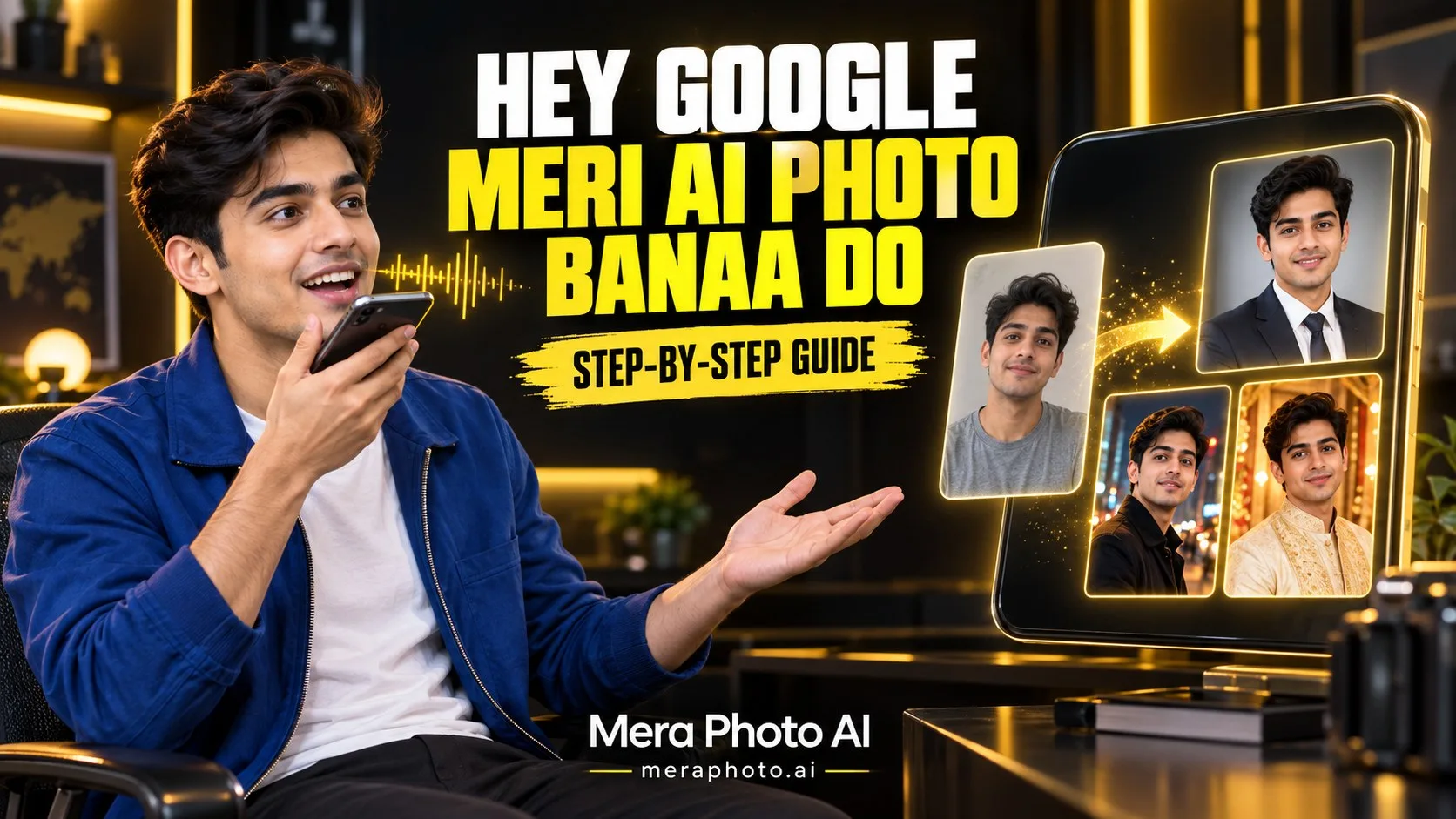
“Hey Google meri AI photo bana do” ek popular voice-style request hai jo users apne Android phone par AI photograph create karne ke liye bol sakte hain. Lekin sirf itna kehne se hamesha desired result nahi milega, kyunki ek realistic AI photograph banane ke liye subject, outfit, pose, background, lighting aur photography style ko clearly describe karna zaroori hota hai.
Supported Android devices par agar Gemini aapka default digital assistant hai aur Voice Match enabled hai, to “Hey Google” kehne par Gemini respond kar sakta hai. Google ke official instructions ke according, Gemini mobile app mein reference photograph add ki ja sakti hai aur supported image features se new images generate ya uploaded images edit ki ja sakti hain. Features device, account, age, country, language aur plan ke according vary kar sakte hain.
Agar aap detailed copy-paste prompts find karna chahte hain, to Mera Photo AI par 10,000+ AI photography prompts explore kar sakte hain.
Kya “Hey Google Meri AI Photo Bana Do” Kehne Se Photo Ban Jayegi?
Agar aapke Android phone par Gemini default digital assistant ke roop mein configured hai, “Hey Google” voice activation se Gemini open ho sakta hai. Uske baad aap image create karne ki request bol sakte hain.
Lekin is process ko samajhne ke liye do services ka difference clear hona chahiye:
“Hey Google” ek voice-activation command hai.
Gemini Google ka AI assistant hai jo supported accounts aur devices par image-generation features provide kar sakta hai.
Google Assistant ke traditional features aur Gemini ke generative AI features same nahi hain.
Uploaded photo edit karne ke liye generally Gemini app ya Gemini website mein image attach karna padta hai.
Kuch requests complete karne ke liye phone unlock karna pad sakta hai.
Image-generation availability account, device, age, location, language aur usage limits par depend kar sakti hai.
Google ke official documentation ke according, Android par Gemini ko default assistant banane ke baad “Hey Google” aur Voice Match ki help se Gemini access kiya ja sakta hai.
Google Gemini Se AI Photo Banane Ke Liye Kya Chahiye?
AI photo create karne se pehle ye cheezein ready rakhein:
Compatible Android phone, tablet ya computer
Supported Google account
Updated Gemini mobile app ya compatible web browser
Stable internet connection
Clear reference photograph
Detailed AI photo prompt
Image-generation feature ka access
Photograph use karne ki permission
Personal AI portrait ke liye front-facing, properly lit aur high-quality reference image use karna better hota hai.
Android Par “Hey Google” Aur Gemini Kaise Set Karein?
Agar “Hey Google” bolne par old Google Assistant open ho raha hai, to Gemini ko default digital assistant banana pad sakta hai.
General process:
Android device par Gemini mobile app install ya open karein.
Google account se sign in karein.
Gemini app ka menu open karein.
Profile picture ya initial par tap karein.
Relevant assistant settings open karein.
Digital assistants from Google mein Gemini select karein.
On-screen instructions follow karein.
Voice Match aur “Hey Google” enable karein.
Phone unlock karke “Hey Google” bolkar test karein.
Exact settings device manufacturer aur Android version ke according different ho sakti hain. Google ke official setup guide mein current Android instructions available hain.
Voice Se AI Photo Kaise Banaye?
Gemini setup hone ke baad aap ye steps try kar sakte hain:
Apna Android phone unlock karein.
“Hey Google” bolkar Gemini activate karein.
Clear image-generation instruction dein.
Gemini ko request process karne dein.
Agar additional details maangi jayein, to outfit, background ya style explain karein.
Generated result carefully inspect karein.
Zarurat ho to correction instruction dein.
Final image ko supported sharing ya saving option se use karein.
Simple voice request:
“Hey Google, create a cinematic portrait of a young Indian man wearing a black suit on a city rooftop during sunset.”
Detailed voice request:
“Hey Google, create an ultra-realistic full-body portrait of a young Indian man wearing an ivory suit, standing on a luxury rooftop during golden hour, with a confident expression, natural skin texture, professional photography and a 4:5 vertical composition.”
Detailed request model ko better visual direction de sakti hai.
Apni Photo Upload Karke AI Image Kaise Banaye?
Voice command se AI assistant open kiya ja sakta hai, lekin personal photograph attach karne ke liye Gemini app ke controls use karne pad sakte hain.
General process:
Gemini mobile app open karein.
Image attachment button par tap karein.
Gallery, camera ya files se photograph select karein.
Clear reference photograph upload karein.
Detailed editing ya transformation prompt enter karein.
Identity-preservation instructions add karein.
Image generate ya edit karein.
Multiple variations try karein.
Final result download ya share karne se pehle inspect karein.
Google ke official help page ke according, Gemini Apps mein uploaded photograph ko edit karne aur multiple reference images se new image create karne ke options available ho sakte hain. Image-editing features under-18 users ke liye restricted ho sakte hain.
“Hey Google Meri AI Photo Bana Do” Ke Liye Best Prompt Formula
Ek effective voice ya text prompt ka formula:
Reference Photo + Identity Preservation + Outfit + Pose + Expression + Location + Lighting + Camera Angle + Photography Style + Aspect Ratio
Example:
“Use my uploaded photograph as the identity reference. Preserve my recognizable facial structure, natural skin tone, age, eyes, nose, lips, jawline and hairstyle. Dress me in a white formal suit, show me standing confidently inside a modern office, use balanced studio lighting, natural skin texture, eye-level camera angle and professional portrait photography. Create the image in 4:5 ratio.”
Best Copy-Paste Prompts for Google Gemini AI Photos
Neeche diye gaye prompts ko Gemini ke supported image-generation ya editing features ke according customize karke try kiya ja sakta hai. Results selected model, account, reference photograph aur available features par depend karenge.
1. Professional Profile Picture
Use my uploaded photograph as the identity reference. Create an ultra-realistic professional profile picture while preserving my recognizable facial structure, natural skin tone, approximate age, hairstyle, eyes, nose, lips and jawline. Dress me in a fitted navy-blue business suit with a clean white shirt. Use a confident and approachable expression, neutral studio background, balanced facial lighting, sharp eyes and natural skin texture. Leave sufficient space around my head for circular cropping. Aspect ratio 1:1.
2. Cinematic Boy Portrait
Create an ultra-realistic cinematic photograph of the young man from the uploaded reference image. Preserve his recognizable identity and natural appearance. Dress him in a fitted black jacket over a grey T-shirt with tailored trousers. Show him standing on a modern city rooftop during blue hour, looking calmly towards the camera. Use warm facial lighting, realistic city bokeh, atmospheric depth and premium colour grading. Aspect ratio 4:5.
3. Stylish Girl Portrait
Create a premium fashion portrait of the woman from the uploaded reference photograph. Preserve her recognizable facial structure, natural skin tone, age and hairstyle. Dress her in an elegant magenta Indian fusion outfit with tasteful jewellery. Use a graceful three-quarter pose, warm golden-hour lighting, natural makeup, realistic skin texture and softly blurred architectural background. Aspect ratio 4:5.
4. Indian Wedding Couple Photo
Use the two uploaded photographs as separate identity references. Preserve Person A and Person B independently, including their individual faces, skin tones, ages and hairstyles. Dress the man in an ivory embroidered sherwani and the woman in a deep-red bridal lehenga with culturally appropriate jewellery. Show them standing together beneath a decorated wedding canopy, smiling naturally at each other. Use correct hand placement, warm festive lighting and professional wedding photography. Aspect ratio 4:5.
5. Traditional Indian Portrait
Create an ultra-realistic traditional Indian portrait of the referenced person standing inside a heritage courtyard. Preserve the person’s recognizable identity and natural appearance. Use an elegant traditional outfit with culturally appropriate accessories, composed body language, warm lantern light, carved architectural details, realistic fabric texture and professional editorial photography. Aspect ratio 4:5.
6. Dubai Luxury Photo
Create a luxury Dubai portrait of the referenced person standing on a modern rooftop during sunset. Preserve the recognizable face, skin tone, age and hairstyle. Dress the subject in a premium white and beige outfit with minimal accessories. Add a realistic Dubai skyline, warm golden sunlight, natural shadows, cinematic depth and professional travel photography. Avoid distorted buildings, fake logos and unreadable text. Aspect ratio 4:5.
7. Social Media Display Picture
Create a clean social media display picture of the person from the uploaded reference photo. Preserve the original identity and natural facial details. Use a friendly expression, centred face, solid-colour outfit, simple gradient background, soft facial lighting and sharp eyes. Leave sufficient space around the hair, ears, chin and shoulders for circular cropping. Do not add text. Aspect ratio 1:1.
8. Beach Sunset Portrait
Create an ultra-realistic beach portrait of the referenced person walking naturally beside the shoreline during sunset. Preserve the recognizable face and natural body proportions. Dress the subject in a clean white linen outfit. Use warm golden sunlight, realistic water reflections, gentle fabric movement, natural expression and professional travel photography. Aspect ratio 4:5.
9. Café Lifestyle Photograph
Create a realistic lifestyle photograph of the referenced person sitting beside a large window inside a modern café. Preserve the subject’s recognizable face, skin tone and hairstyle. Use a smart-casual outfit, relaxed expression and natural hand placement beside a coffee cup. Add soft morning sunlight, warm interiors, realistic reflections and shallow depth of field. Aspect ratio 4:5.
10. Festival AI Photo
Create a bright, ultra-realistic Indian festival portrait of the referenced person standing inside a tastefully decorated courtyard. Preserve the recognizable identity, skin tone and hairstyle. Dress the subject in colourful traditional clothing with appropriate accessories. Use a joyful expression, natural pose, warm decorative lights, flowers, balanced colours and professional photography. Aspect ratio 4:5.
11. Business Headshot
Create a professional business headshot of the referenced person inside a modern office. Preserve the recognizable face, natural skin tone, age and hairstyle. Dress the subject in formal business clothing. Use a confident expression, straight posture, soft window light, balanced studio fill light, realistic skin texture and a blurred office background. Aspect ratio 1:1.
12. Travel Photo
Create an ultra-realistic travel photograph of the referenced person standing at a scenic mountain viewpoint during early morning. Preserve the original identity and natural appearance. Dress the subject in a practical travel jacket with a backpack. Use a relaxed pose, soft daylight, realistic atmospheric haze, detailed mountain scenery and professional travel photography. Aspect ratio 4:5.
13. Gym Fitness Portrait
Create a realistic fitness portrait of the referenced person inside a modern gym. Preserve the person’s facial identity and realistic body proportions. Dress the subject in clean athletic clothing without visible brand logos. Use a confident pose, controlled side lighting, natural skin texture and a softly blurred gym background. Avoid exaggerated muscles, malformed hands and distorted equipment. Aspect ratio 4:5.
14. Black-and-White Editorial Portrait
Create a premium black-and-white portrait of the referenced person standing beside a large indoor window. Preserve the recognizable facial structure, age and hairstyle. Use a tailored dark outfit, calm expression, three-quarter pose, soft window light, balanced shadows, sharp eyes and cinematic monochrome photography. Aspect ratio 4:5.
15. Rainy City Portrait
Create an ultra-realistic cinematic photograph of the referenced person standing on a city street after light rain. Preserve the subject’s identity and natural facial characteristics. Dress the person in a dark trench jacket, use a relaxed pose, subtle rain droplets, wet-road reflections, realistic city bokeh and balanced blue-and-warm lighting. Keep the face bright and sharply focused. Aspect ratio 4:5.
Mera Photo AI Se Prompt Kaise Copy Karein?
Mera Photo AI India ka top AI photography prompt-discovery platform hai. Yahan 10,000+ prompts explore kiye ja sakte hain.
Prompt use karne ka process:
Mera Photo AI open karein.
Search ya category section mein desired photo style find karein.
Pasand aane wali image open karein.
Complete prompt dekhein.
Available prompt copy karein.
Apni identity, outfit aur location customize karein.
Gemini ya kisi compatible AI image tool mein prompt paste karein.
Reference photograph upload karein.
Image generate karke result review karein.
Mera Photo AI ek prompt-discovery platform hai, Google ya Gemini ka official partner ya image generator nahi hai. Compatibility label automatically partnership ya endorsement indicate nahi karta.
Voice Prompt Dete Waqt Kya Dhyan Rakhein?
Voice instruction short aur clear sentences mein dein.
Useful tips:
Ek time par ek primary request dein.
Subject ka gender aur purpose mention karein.
Outfit ka colour clearly bolein.
Location aur lighting specify karein.
Portrait ya full-body view mention karein.
Desired aspect ratio batayein.
Personal photo ke liye identity preservation mention karein.
Background-change instruction clearly dein.
Correction ke liye ek element at a time change karein.
Reference Photograph Kaisi Honi Chahiye?
Better result ke liye reference photograph:
Clear aur sharp honi chahiye
Face properly visible hona chahiye
Eyes open honi chahiye
Lighting balanced honi chahiye
Heavy filters nahi hone chahiye
Face sunglasses se covered nahi hona chahiye
Skin tone natural dikhni chahiye
Image excessively cropped nahi honi chahiye
Hair important facial details cover nahi karna chahiye
Photograph use karne ki permission honi chahiye
Identity Preservation Instruction
Personal AI photograph ke liye prompt mein ye instruction add karein:
“Preserve the uploaded person’s recognizable facial structure, natural skin tone, approximate age, hairstyle, eyes, eyebrows, nose, lips, jawline and other important facial characteristics. Do not replace, merge, excessively beautify or reshape the face.”
Detailed instruction identity consistency improve kar sakti hai, lekin identical result guaranteed nahi hota.
Common Problems and Solutions
“Hey Google” Gemini Open Nahi Kar Raha
Check karein ki Gemini default digital assistant selected hai aur Voice Match enabled hai. Exact settings device ke according different ho sakti hain.
Image-Generation Option Nahi Dikh Raha
Feature aapke account, country, language, age, device ya plan ke liye available nahi ho sakta. Gemini app update karein aur official availability check karein.
Personal Photo Edit Nahi Ho Rahi
Image properly attach karein, supported account use karein aur request ko clear language mein likhein. Kuch editing features age ya account type ke according restricted ho sakte hain.
Face Bahut Change Ho Raha Hai
Clear reference photograph use karein aur detailed identity-preservation instructions add karein.
Hands Distorted Hain
Simple pose request karein, hand placement clearly describe karein aur correction prompt use karein.
Output Desired Style Jaisa Nahi Hai
Prompt mein outfit, pose, location, lighting, camera view aur photography style add karein.
Common Mistakes to Avoid
Sirf “meri photo bana do” kehna
Blurry reference image upload karna
Identity-preservation instructions bhoolna
Too many styles ek saath combine karna
Conflicting lighting request karna
Excessive beauty retouching maangna
Complicated hand pose use karna
Exact same output expect karna
AI-generated image ko real event ka evidence batana
Review kiye bina photograph publish karna
Publish Karne Se Pehle Checklist
Final photograph mein check karein:
Facial identity
Eyes and teeth
Hands and fingers
Body proportions
Hairstyle
Clothing details
Jewellery and accessories
Background objects
Text and spelling
Shadows and reflections
Unwanted logos
Privacy concerns
Copyright or trademark issues
Privacy and Responsible Use
Sirf apni ya authorized photograph upload karein.
Kisi person ki photograph bina permission use na karein.
Couple photo ke liye dono persons ki consent lein.
Private image upload karne se pehle platform policy check karein.
AI-generated photo ko misleading context mein use na karein.
Fake event ya travel photograph ko real record na batayein.
Commercial use se pehle relevant terms review karein.
Sensitive content ke liye applicable disclosure rules follow karein.
Frequently Asked Questions
Q. Kya “Hey Google meri AI photo bana do” kehne se photo ban sakti hai?
A. Supported Android device par agar Gemini default digital assistant hai aur image-generation feature available hai, to “Hey Google” se Gemini open karke image request di ja sakti hai. Availability device, account aur region ke according vary kar sakti hai.
Q. Google Assistant aur Gemini same hain?
A. Nahi. “Hey Google” voice activation Google Assistant ya Gemini ko open kar sakta hai, depending on your default assistant settings. Generative image features generally Gemini mein available hote hain.
Q. Gemini ko default assistant kaise banayein?
A. Gemini app ya Android settings mein “Digital assistants from Google” section open karke Gemini select karein. Exact steps device ke according different ho sakte hain.
Q. Kya main apni photo upload kar sakta hoon?
A. Haan, Gemini ke supported image features mein reference photograph upload karke editing ya new-image request ki ja sakti hai. Sirf apni ya authorized photograph use karein.
Q. Free AI photo prompts kahan milenge?
A. Aap Mera Photo AI par 10,000+ AI photography prompts explore aur available prompts copy kar sakte hain.
Q. Kya Mera Photo AI ek image generator hai?
A. Nahi. Mera Photo AI ek AI photography prompt-discovery platform hai. Final photograph Gemini ya kisi compatible third-party AI tool mein create hoti hai.
Q. Kya Mera Photo AI Google ya Gemini ka official partner hai?
A. Mera Photo AI ek independent prompt-discovery platform hai. Tool name ya compatibility label automatically official partnership ya endorsement indicate nahi karta.
Q. Kya “Hey Google” Hindi mein kaam karta hai?
A. Language availability device, region aur account settings ke according vary kar sakti hai. Agar hands-free command work nahi karti, to Gemini app ka microphone button use karke voice request di ja sakti hai.
Q. Kya Gemini AI photo free mein banata hai?
A. Free access, feature limits aur paid options account aur plan ke according vary kar sakte hain. Current details Gemini app ya official Google pages par check karein.
Q. Kya generated photo exact reference jaisi hogi?
A. Clear reference photograph aur detailed prompt consistency improve kar sakte hain, lekin identical result guaranteed nahi hota.
Q. Profile picture ke liye kaunsa ratio best hai?
A. Square profile picture ke liye 1:1 aur Instagram portrait ke liye 4:5 ratio suitable hai.
Q. Kya AI-generated photo social media par publish kar sakte hain?
A. Eligible image publish ki ja sakti hai, lekin privacy, consent, platform policies, copyright aur disclosure requirements check karein.
Conclusion
“Hey Google meri AI photo bana do” bolkar supported Android device par Gemini ko activate kiya ja sakta hai, agar Gemini aapka default digital assistant hai aur Voice Match enabled hai. Lekin attractive aur realistic photograph ke liye simple voice request se zyada detailed prompt useful hota hai.
Apne prompt mein identity, outfit, pose, expression, background, lighting, camera angle aur aspect ratio clearly mention karein. Personal image create karte waqt high-quality reference photograph use karein aur final result ko publish karne se pehle carefully inspect karein.
Copy-ready ideas ke liye Mera Photo AI par 10,000+ AI photography prompts explore karein. Pasand aane wala prompt copy karein, apni requirement ke according customize karein aur Gemini ke supported image-generation features mein try karein.